HivemindOS manual
My Hive
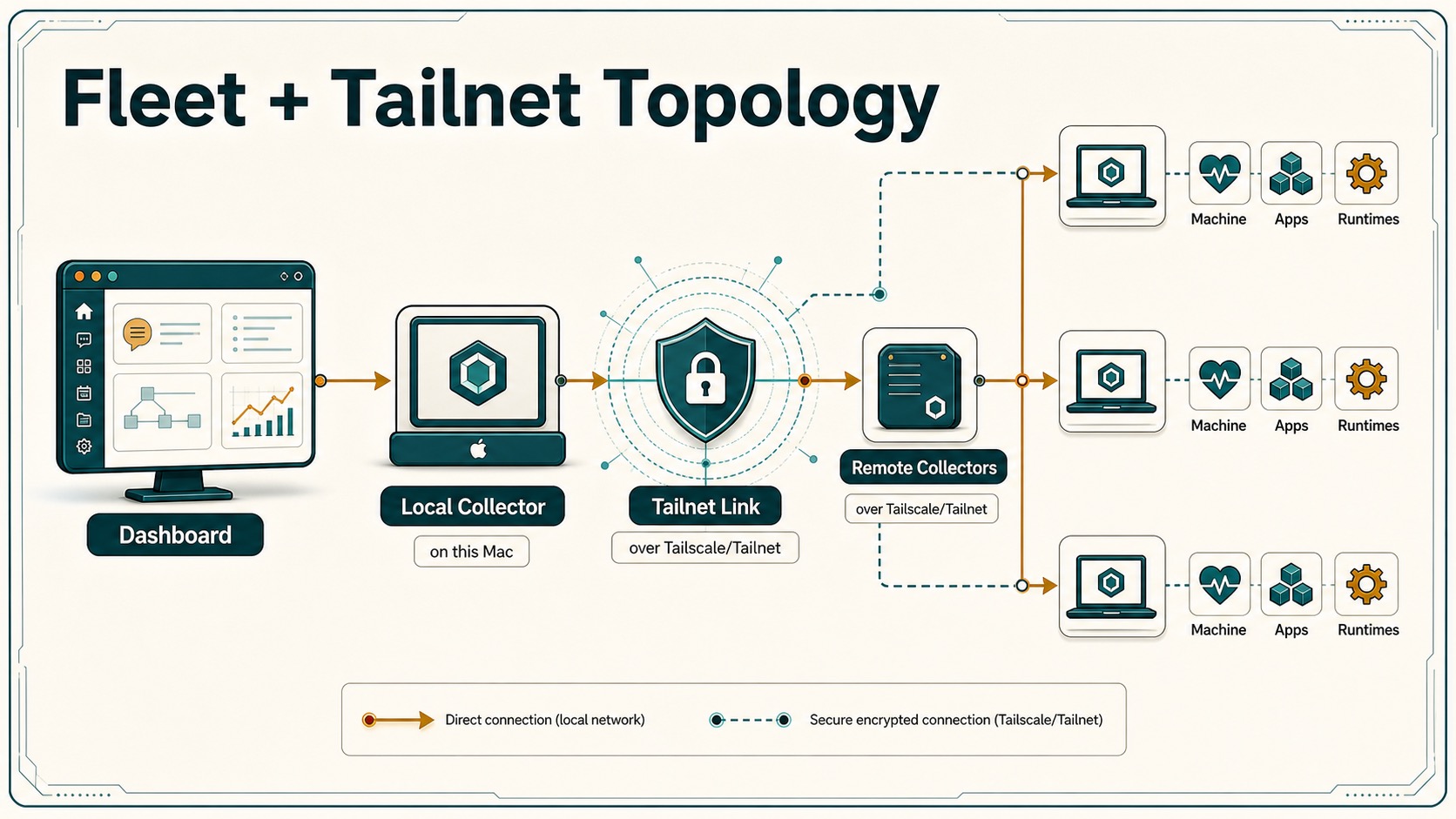
My Hive shows your connected computers, the agents on each one, what is online, and what needs your attention. Open it when an agent is missing, work needs to run on a particular machine, or you want to add another computer.
What you can do
- See this computer and every trusted remote machine in one place.
- Check whether each machine and its agents are ready.
- Open an agent’s settings or start a conversation with it.
- Add a machine, or repair or update one.
- Browse a remote machine’s allowed folders before assigning work there.
- Open apps and services running across your hive.
My Hive opens in Cards: one card per device, starting with the computer you are using. Select a card for its details, or use Add agent and Settings on it. Devices and the other views show the same machines in different layouts, and My Hive remembers your choice.
Read a machine card
Each card answers four questions:
- Is the machine online? An offline machine can’t take new work until it reconnects.
- Is HivemindOS ready there? A machine can be online while HivemindOS on it still needs setup or repair.
- Which agents are available? Agents belong to a machine and may use different runtimes or models.
- What can it do? File access, apps, model hosting, and remote actions depend on that machine’s permissions and services.
If a card says Needs setup or Needs attention, use the action on the card. The fix opens without leaving My Hive.
Add another computer
- In My Hive, choose Add device.
- Follow the guided setup on the other computer.
- The machine appears once you approve its connection and HivemindOS on it reports ready.
Machines connect privately. You never need to expose a dashboard or service to the public internet. If the machine appears but stays unreachable, see Troubleshooting.
Choose where work runs
An agent runs on the machine it belongs to. Pick the machine by what the task needs:
- This computer for local files and interactive work.
- Another trusted computer when the project or app lives there.
- A machine with a suitable local model or GPU for heavier local work.
- A managed cloud agent when work must continue while your computers are off.
A machine’s permissions can make a task ask for approval there even if the same action is allowed locally. See Fleet machine permissions.
Apps and services
Open More → Apps & Services to see apps and APIs found on your connected machines. Apps open directly. Service cards show what a service offers and whether it is healthy.
Finding a service does not give agents permission to use it. Account connections, machine permissions, and approvals still apply.
What stays in your control
- A machine joins only after setup and your approval.
- Remote file browsing is limited to the folders that machine allows.
- Consequential remote actions can be set to allow, ask, or deny.
- Disconnecting a machine stops new remote work. It does not erase that machine’s files.